
VersionVersion 1.3
Last updated2026-06-08
SupportCommunity support
UpdatesIncluded when available

Voice to Word – Free Python Dictation App

£0.00

Free open-source Python app

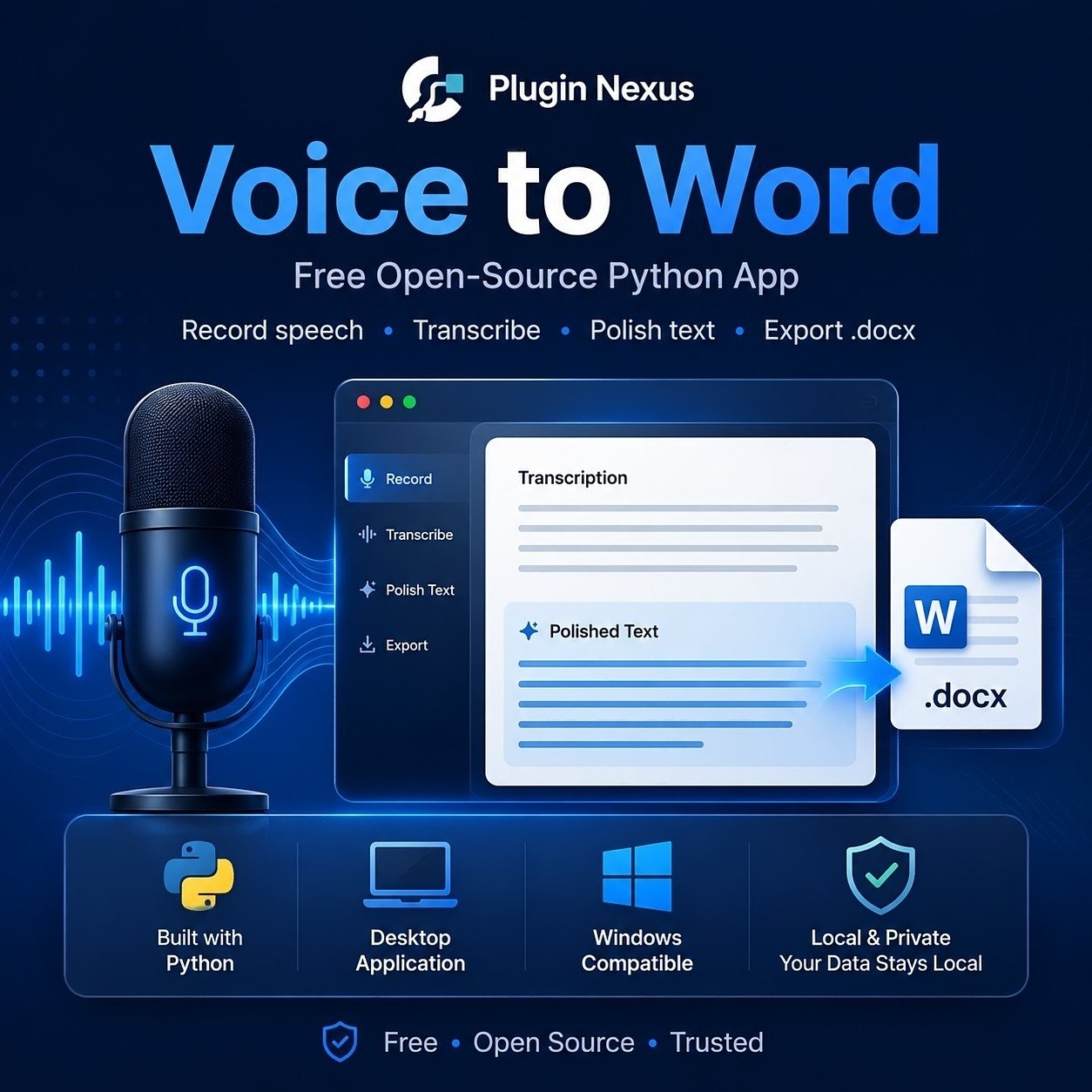
Voice to Word is a free local Windows-friendly Python app from Plugin Nexus. It helps you record speech, transcribe it using the OpenAI API, polish the result into cleaner written text, copy the finished content, or export a Microsoft Word compatible .docx file.

It is designed for dictated notes, letters, rough ideas, article drafts, instructions, documentation and general speech-to-text writing workflows. The app runs locally on your own computer and uses your own OpenAI API key for transcription and text polishing.

Runs locally Use it from your own Windows PC with Python installed.
Exports to Word Create a Word-compatible document or copy the polished text.
Open source The included code can be inspected before running.
Free account required Checkout is free, but an account is needed to access the download.
Important before downloading This is a Python app, not a normal one-click Windows installer. You will need Python installed, a working microphone, internet access and your own OpenAI API key. OpenAI API usage may create costs on your own OpenAI account.

As with any downloaded software, users are responsible for checking the files with their own antivirus/security tools and deciding whether to run the app on their computer.

SKU: pinxs-vce-2doc Category:

Description

Free Plugin Nexus Tool

Voice to Word
Free Python Dictation App

Voice to Word is a free local Windows-friendly Python app created by Plugin Nexus. It lets you record speech from your microphone, transcribe it using the OpenAI API, polish the text into cleaner document-style writing, copy the formatted text, or export a Microsoft Word compatible .docx file. This tool is supplied as an open-source download so users can inspect the code before running it. A free Plugin Nexus account is required at checkout so the download can be added to your account area.

What the app does

Voice to Word is designed for people who want a simple way to dictate notes, letters, articles, instructions or rough ideas and turn them into cleaner written text. The app runs locally on your computer, opens in your web browser, and uses your own OpenAI API key for transcription and document polishing.

🎙

Record dictation

Record speech through your microphone directly from the local browser interface.

📝

Transcribe and polish

Convert spoken audio into text, then optionally polish it into a clearer document-style result.

📄

Export to Word

Create a Microsoft Word compatible .docx file or copy the formatted text into another application.

What you need before downloading

This is a Python app, not a normal one-click Windows installer. Please check the requirements before downloading so you understand what is needed to run it.

🪟

Windows PC

Designed for Windows 10 or Windows 11, with a working microphone and a modern browser such as Chrome or Edge.

🐍

Python required

You need Python 3.11 or newer installed. When installing Python, make sure Add python.exe to PATH is ticked.

🔑

OpenAI API key

The app uses your own OpenAI API key for transcription and document polishing. OpenAI API usage may create costs on your own OpenAI account.

Python install note

If Python is not already installed, download it from the official Python website, run the installer, tick Add python.exe to PATH, then check it by opening Command Prompt and typing python --version.

How to run the app

After downloading, extract the zip file to a normal folder on your computer. Do not run it directly from inside the zip file.

1

Extract the zip

Right-click the download, choose Extract All, and extract the app to a normal folder such as Documents.

2

Start the app

Double-click Start-Voice-To-Word.bat. The first run may install the required Python packages.

3

Open the local page

Open http://127.0.0.1:5000 in Chrome or Edge. This is a local page running on your own computer.

Important safety and responsibility notice

This free tool is provided as-is. Before running any downloaded software, you are responsible for checking it with your own antivirus and security tools and deciding whether it is safe for your computer. Where possible, test downloaded tools in a virtual machine, spare PC, or other isolated test environment before using them on a working or business computer. Plugin Nexus does not accept responsibility for data loss, system issues, security problems, compatibility issues, misuse, API costs, or any direct or indirect loss caused by downloading, installing, testing, running, modifying or using this tool. This app is open source so the code can be inspected before running. Users should still make their own decision about whether to download and run it.

Privacy and API usage note

The app uses the OpenAI API for transcription and polishing. Do not dictate sensitive, private or confidential information unless you are comfortable with that content being sent to the OpenAI API through your own API account.

Free download

Download Voice to Word

This is a free Plugin Nexus download. Add it to your basket for £0.00 and complete checkout with a free account so the download is saved to your Plugin Nexus account area.
Requires Python Python 3.11 or newer is required to run this app. Open source The code is included so users can inspect it before running.
Free Plugin Nexus Utility

Voice to Word Python App Features

Voice to Word is a simple Python-powered desktop utility for Windows that helps users convert spoken words into text, then copy that text ready to paste into Microsoft Word, email, WordPress or other applications.

It is designed as a practical first-draft tool for notes, letters, articles, support replies, instructions and general writing, especially for users who prefer speaking instead of typing.

Core Purpose

  • Convert spoken words into text on a Windows PC.
  • Help users dictate notes, letters, articles, emails and documents.
  • Provide a simple local desktop tool instead of a complicated cloud workflow.
  • Copy dictated text ready to paste into Microsoft Word, email, websites or other applications.
  • Useful for users who prefer speaking instead of typing.
  • Helpful for drafting long text quickly before editing.
  • Suitable as a free Plugin Nexus utility or newsletter freebie.

Voice Dictation

  • Record spoken words through the computer microphone.
  • Convert speech into written text.
  • Capture natural spoken sentences.
  • Useful for notes, instructions, blog drafts, letters and general writing.
  • Allows users to create text faster than typing.
  • Helps reduce keyboard use for longer writing tasks.
  • Can be used as a practical first draft tool.

Copy Raw Text

  • Copy dictated text directly to the clipboard.
  • Paste the copied text into Microsoft Word.
  • Paste into email clients.
  • Paste into WordPress.
  • Paste into support tickets, notes apps or documents.
  • Simple workflow for users who want the plain captured text.
  • Includes a status message or alert so the user knows the text has been copied.

Word Document Workflow

  • Dictate content first.
  • Review the captured text.
  • Copy the text.
  • Open Microsoft Word.
  • Paste the text into a document.
  • Edit, format and save as needed.
  • Useful for creating letters, reports, blog drafts and instructions.

Simple Desktop App

  • Runs as a Python-based desktop application.
  • Designed for Windows users.
  • Provides a straightforward interface rather than a complex editor.
  • Keeps the workflow focused on recording, converting and copying text.
  • Suitable for non-technical users once Python and requirements are installed.
  • Can be used as a lightweight productivity tool.

Microphone Support

  • Uses the computer’s microphone input.
  • Works best with a clear microphone.
  • Can be used with laptop microphones, USB microphones or headset microphones.
  • Better audio quality improves transcription accuracy.
  • Best results come from speaking clearly in a quiet environment.
  • Users should check Windows microphone permissions if recording does not work.

Text Review

  • Shows dictated text before the user copies it.
  • Allows users to check the captured text.
  • Helps spot recognition errors before pasting into Word.
  • Encourages proofreading before using the final document.
  • Useful because speech recognition may mishear words, names or technical terms.

Practical Use Cases

Dictating letters
Drafting blog posts
Creating email replies
Writing notes
Capturing meeting thoughts
Creating product descriptions
Drafting support replies
Writing instructions or procedures
Recording ideas while working
Helping users who type slowly or prefer speaking

User Requirements

  • Windows PC.
  • Working microphone.
  • Python installed.
  • Required Python packages installed.
  • Internet access may be required depending on the speech recognition method used.
  • Microsoft Word is optional, but useful if the user wants to create Word documents.
  • User should be comfortable running the supplied app or batch file.

Python Setup

  • Install Python from the official Python website.
  • Tick Add Python to PATH during installation.
  • Confirm Python is installed by opening Command Prompt and typing python --version.
  • Install required packages using the provided instructions.
  • Run the application using the supplied launch file or command.
  • Restart the PC if Windows does not recognise Python immediately after installation.

Accuracy Tips

  • Speak clearly and at a steady pace.
  • Use a quiet room.
  • Place the microphone close enough to capture speech clearly.
  • Avoid background music, fans or machinery noise.
  • Pause briefly between sections.
  • Proofread the final text before sending or publishing.
  • Manually correct names, brands, punctuation and specialist terms.

Editing and Proofreading

  • Dictated text should be treated as a draft.
  • User should check spelling and grammar.
  • User should check names, dates and technical words.
  • User should add formatting in Word after pasting.
  • User should not send important documents without reviewing the text.
  • Speech-to-text can save time, but final checking remains the user’s responsibility.

Plugin Nexus Branding

  • Includes “Created by Plugin Nexus” branding.
  • Can link back to https://pluginnexus.com.
  • Suitable as a free visitor tool.
  • Can be offered as a newsletter signup freebie.
  • Helps introduce users to Plugin Nexus software.
  • Demonstrates practical, useful software rather than only commercial plugins.

Privacy and Responsibility

  • Users should avoid dictating sensitive private information unless they understand how the speech recognition process works.
  • Users are responsible for checking any text before using it.
  • Users should virus scan downloaded files before running them.
  • Users should test downloaded apps in a safe environment where possible.
  • Virtual machine testing is recommended for cautious users.
  • Plugin Nexus should include a clear disclaimer that users run downloaded software at their own responsibility.

Safety / Download Disclaimer Points

  • Scan the download with antivirus software before running.
  • Only download from the official Plugin Nexus website.
  • Do not run files from unknown sources.
  • Test in a virtual machine or non-critical environment where possible.
  • Back up important files before installing or testing new software.
  • Plugin Nexus cannot accept responsibility for damage caused by misuse, modified copies or unsupported environments.

Practical Workflow

Install Python if it is not already installed.
Install the required Python packages.
Connect or check the microphone.
Launch the Voice to Word app.
Press the record/start option.
Speak clearly.
Stop recording when finished.
Review the generated text.
Click Copy Raw Text.
Paste into Microsoft Word.
Format and proofread the final document.

Suggested Website/Product Page Feature Blocks

Voice-to-text dictation
Copy text to clipboard
Paste directly into Word
Windows desktop utility
Python-powered app
Simple writing workflow
Useful for letters and notes
Microphone-based input
Free Plugin Nexus tool
Great for first drafts
Proofread before sending
No complicated setup once installed

Leave a review

Be the first to review this product.

Reviews

There are no reviews yet.

Only logged in customers who have purchased this product may leave a review.

Free download available

This free Plugin Nexus tool can be downloaded through your account after completing the free checkout. Please check the requirements and usage notes before downloading.

Download Free Tool
PINXS Ai Chatbot
Contact Page